We wrote our own installer, and NeuroSquad now updates itself
The installer went from 550 MB to 96 MB in a day, then got rewritten from scratch. What went wrong with the old one, and how updates now install without ever breaking the copy you have.
NeuroSquad 0.1.100 is the first version that keeps itself up to date. Getting here took three releases in less than a day, and the most useful lesson of the week: an installer is part of the product. It is the first window people see, and when it fails it fails in the worst place — between an old version that is gone and a new one that is not there yet.
From 550 MB to 96 MB
The first public installer weighed 550 MB. Most of it was the dictation model: about 640 MB unpacked, bundled so that voice input would work the moment the app opened. But dictation is optional, and making everyone download it to try a canvas of agents was the wrong trade.
0.1.92 stopped bundling it. The model is now downloaded when you ask for it — at the Dictation step of the setup wizard or later in Settings — and dictation turns itself on as soon as the download completes, without a restart. Until then the status bar says “Dictation: download the model” instead of showing an error. The installer dropped to about 110 MB.
The rest came from a less glamorous place: what gets packed. The packager copies every production dependency of the app in full, and the desktop app listed the whole UI stack there — component libraries, icon sets, the accessibility toolkit — even though the bundler already compiles all of that into the page. Moving everything only the page needs out of the runtime dependencies saved about 70 MB of files that nothing ever loaded. 0.1.94 shipped at 96 MB.
Why the generated installer had to go
The first installers were generated by the packaging tool, and two bugs in them were bad enough to justify writing our own.
The first: it refused to install with “NeuroSquad cannot be closed” while NeuroSquad was already closed. Its check was “is any process running from the install folder”, with no names. What was running was the console host of the terminals from agent cards, left behind after the app exited. You could not see them, the message did not name them, and there was nothing to click.
The second was worse: an interrupted install could leave a half-written app behind. One report was an neurosquad.exe of 8 MB instead of 200, and no entry in Windows’ list of apps to uninstall it with.
The new installer
It is a small WPF program for the .NET Framework 4.8 that is already part of Windows 10 and 11, so it needs nothing installed first. The executable itself is about 240 KB; the app is appended to it as an LZMA payload, cut into 32 MB blocks that are packed and unpacked in parallel, with a CRC-32 for every file. The build downloads its C# compiler once and checks it against a pinned SHA-256; no SDK is required on the build machine either.
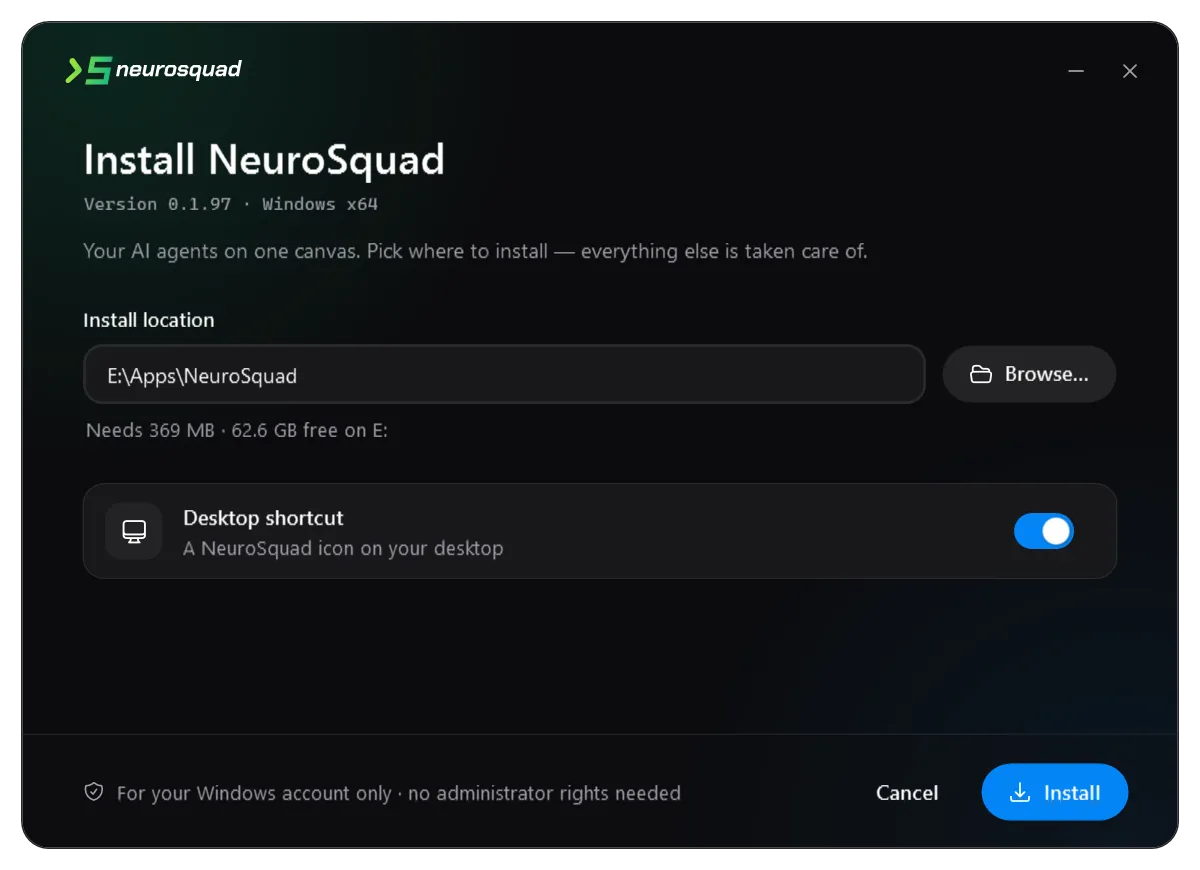
What it does differently is mostly about telling you the truth:
- A live log of every step, in the window and in a file in
%TEMP%, so a failure has a line you can point at. - Processes in the way are listed by name and PID, and ended only when you press the button. No guessing, no silent kills.
- Updates never overwrite in place. The new version is unpacked next to the old one, verified, and the two folders are swapped only when everything is there. A failure or a cancel leaves the old version exactly as it was.
- Uninstall removes what was installed — the files listed at install time, the shortcuts and the Apps entry. Your data is removed only if you tick the box.
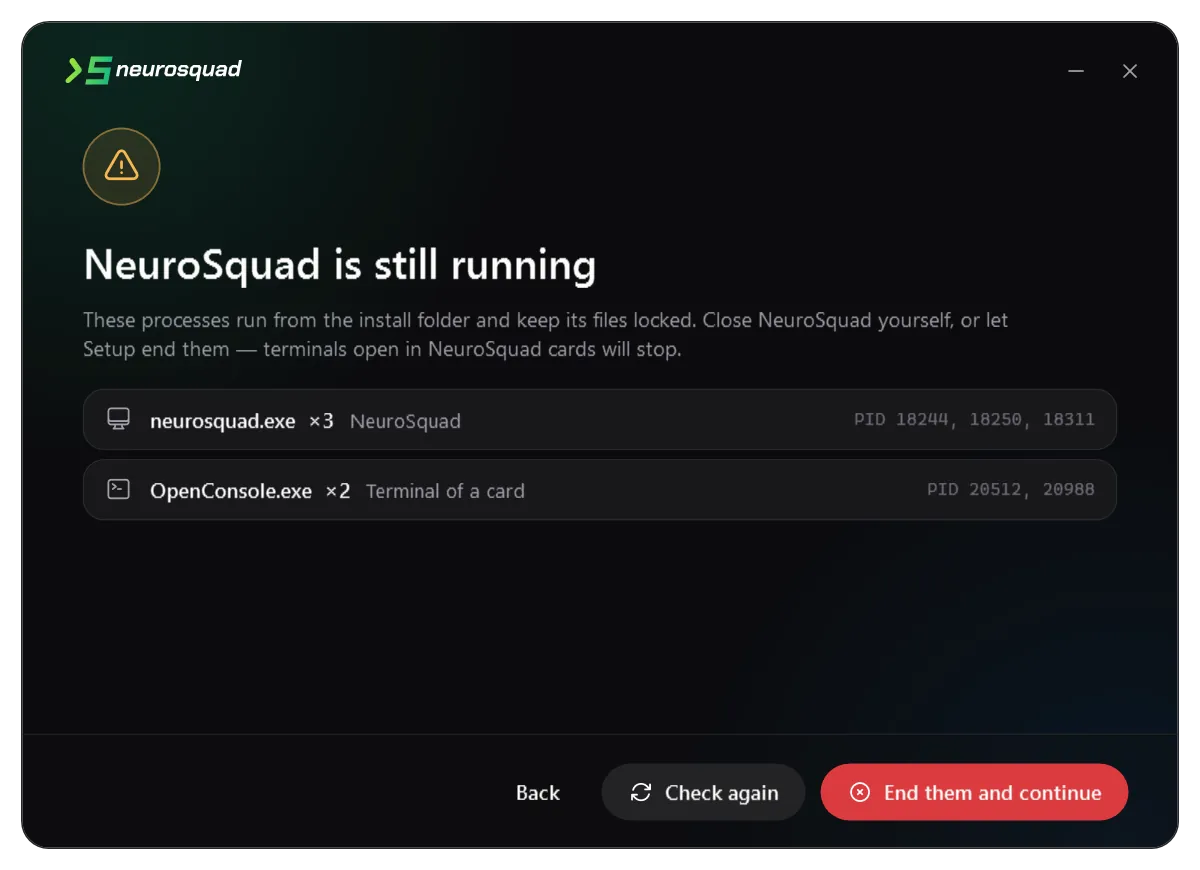
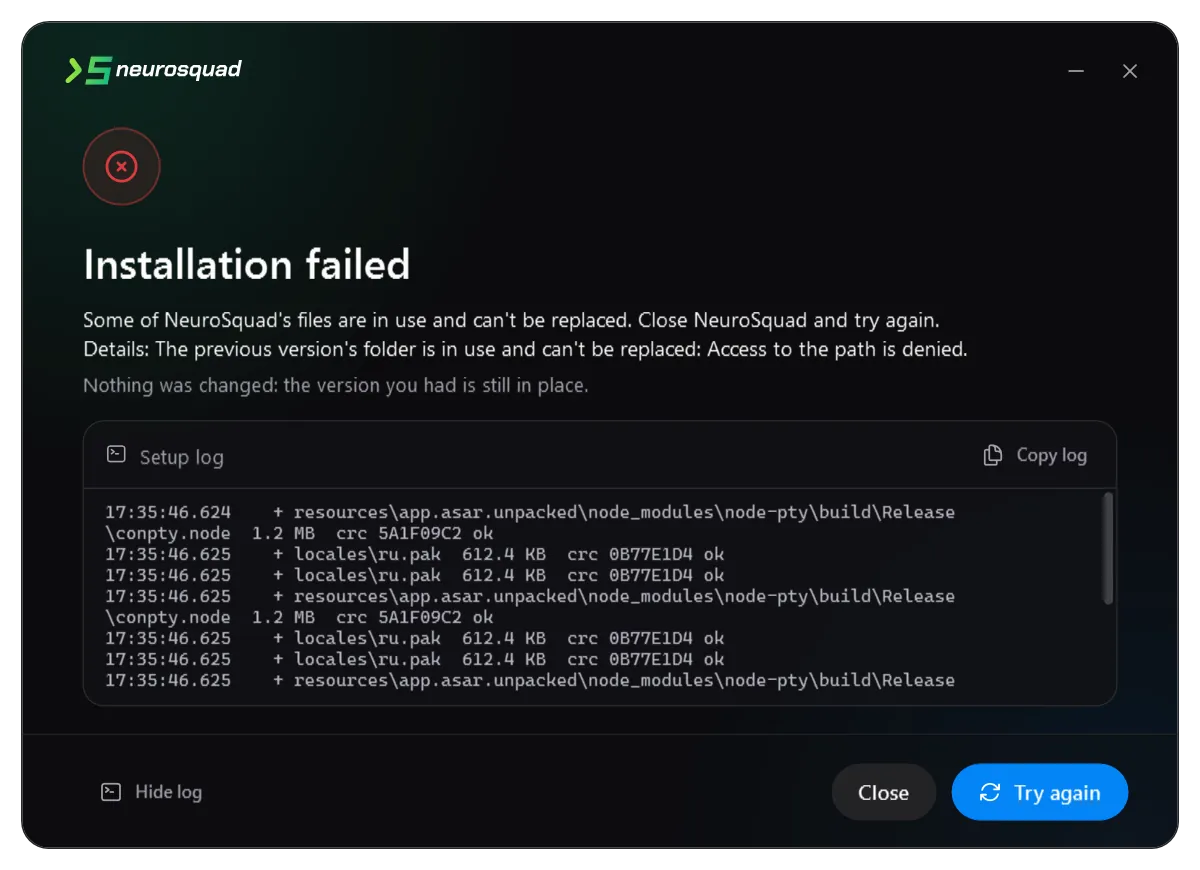
One detail is invisible and essential: the Start menu shortcut must carry the app’s AppUserModelID. Without it, Windows does not deliver the app’s toast notifications — and “your agent needs you” is the notification the whole product is built around.
Testing an installer on the machine you develop on is risky, so it has two switches for that. --snapshot renders every page to a PNG, in any of the three languages. --sandbox puts the shortcuts and the Apps entry into a folder instead of the Start menu and the registry, so install, update and uninstall can be run end to end without touching the system.
Updates that install themselves
With an installer that can replace a running copy safely, automatic updates became possible. NeuroSquad checks for a new release at every start and once an hour, downloads it in the background, and verifies its SHA-256 against the checksum the release itself publishes. No checksum, no install.
Updates are not optional; what you choose is when. A ring in the title bar shows the download; then an icon with a dot lets you update at any moment, and a dialog asks once per version: now, or on the next start. “Now” closes the app, hands over to the installer, which waits for the app to exit, installs over it and starts the new version. The next start installs a known newer version before the app opens at all — and if you are offline, the app gives up after three attempts and opens the version you have.
Downloading NeuroSquad 0.1.108
0.0 of 99.5 MB
When it’s ready you can update right away or on the next start.
The bug the update test found
The update path was tested for real: two builds, a local release feed, an update at start, an update while the app was working, and an offline start with an update already downloaded. With “Update now”, the new version was on screen about ten seconds later.
Before that, the first run failed — at the folder swap. Something still held the install folder, and it was not the app. It was the same orphaned console host that had confused the old installer: a child process of a card’s terminal, whose working directory was the install folder, because that is where the app itself was started from. A process holding a folder as its current directory is enough to stop Windows from renaming it.
The fix is one line at the very top of the app’s startup: change the working directory to the home folder. Children inherit it, and the install folder is no longer anybody’s current directory. 0.1.108 closed the other half: when updating from an older version whose leftover terminals still hold the folder, the installer now lists them with the other processes, and if something it cannot identify still holds a file — an Explorer window, say — it replaces the files one by one instead of giving up, and puts everything back if any step fails.
An installer is the one part of an app that cannot be fixed by the next update. It has to be right while nothing else is running.
If you are on 0.1.94 or older, run the new installer once over it; from then on updates arrive by themselves. Everything that changed is in the changelog for 0.1.100.