Your agents on your phone, in a grid made for it
Remote access used to give a phone the desktop app squeezed onto a small screen. In NeuroSquad 0.1.273 a phone gets a grid of your agents built for a thumb, and a computer’s browser gets Canvas and Grid like the desktop.
Pairing a phone with NeuroSquad has been possible for a while: scan a code, and the phone shows your workspaces, the agents’ screens and their statuses, and lets you send a prompt. But what it showed was the desktop app made smaller — a canvas meant for a mouse and a big monitor, on a screen you hold in one hand. You could check on an agent; working with one was awkward.
NeuroSquad 0.1.273 changes that. Remote access now adapts to the device: a phone or a tablet gets a grid of your agents made for touch, with a prompt box, status filters and a full-screen terminal with the keys a phone keyboard lacks; a computer’s browser gets the app exactly as on the desktop, with Canvas and Grid. Agents in dangerous mode can now ask for an MCP server and you allow it in one dialog. Run Stats and Agent Pulse show what subagents spent. And the app writes to disk less and starts many cards more smoothly. This is a Windows release; the Mac app stays on 0.1.230 for now and gets all of this with its next build.
A grid on the phone
Open a workspace on the phone and it now opens as a grid of its agents: one per screen on a phone, two or three side by side on a landscape phone or a tablet. You scroll from agent to agent. Each tile is the real card — its header, its status, its menu, a live mirror of its terminal with zoom. At the top are the workspace switcher, the notifications, a switch to the canvas, and a row of filters with counts: All, Needs input, Working, Done. When five agents run and one is waiting for you, one tap on Needs input leaves only that one.
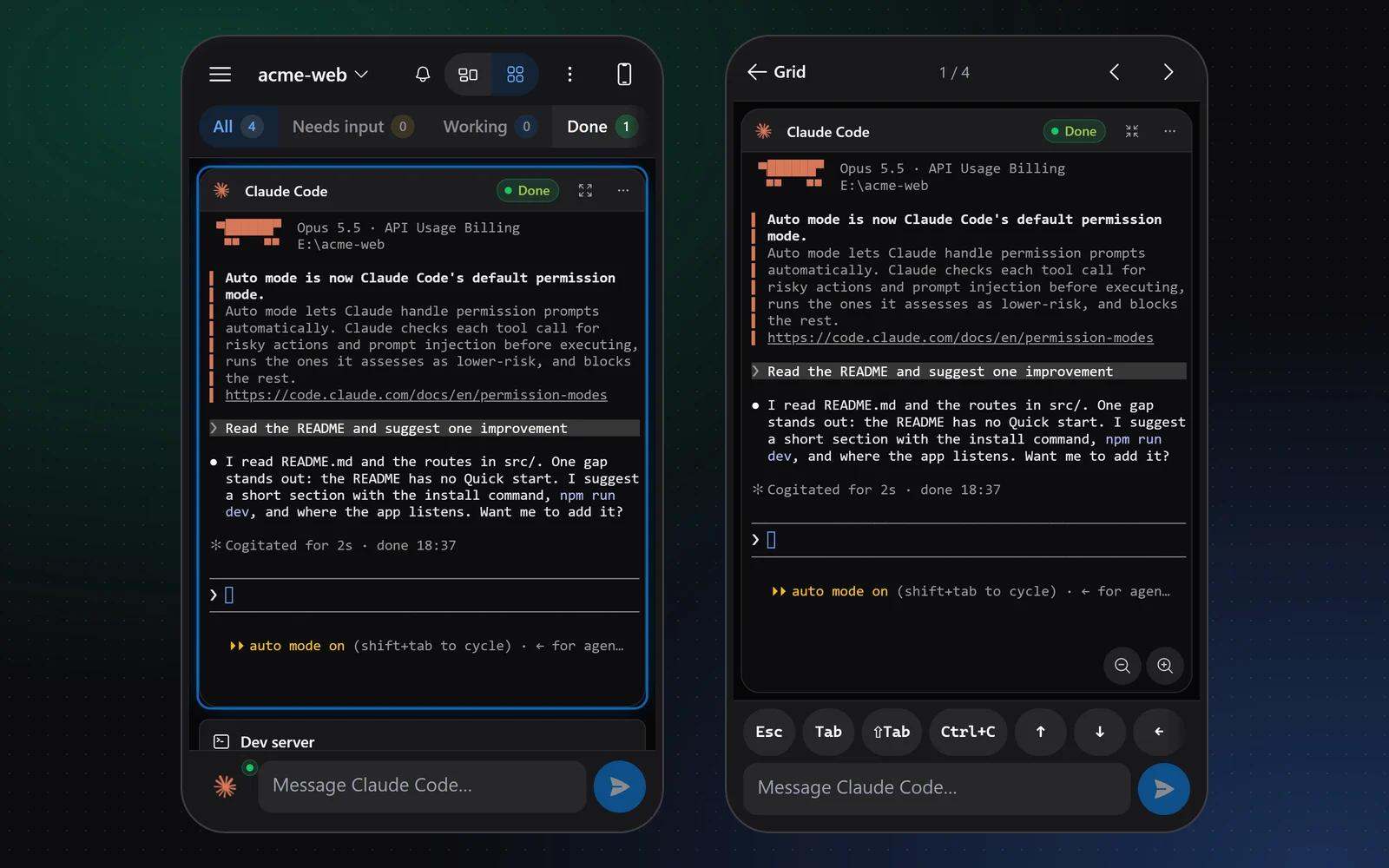
At the bottom sits a prompt box. Tap an agent to make it the target and type — it is a real text field, so autocorrect and the phone’s voice keyboard work, and the text goes to the agent the same way it does from the desktop card. Stop interrupts the turn, and it does so the agent’s own way: for some CLIs that is Escape, for others Escape twice or Ctrl+C, the same list the desktop uses. When an agent asks a question, 1 / 2 / 3, Esc and Enter appear above the box, so a permission prompt is answered with one tap.
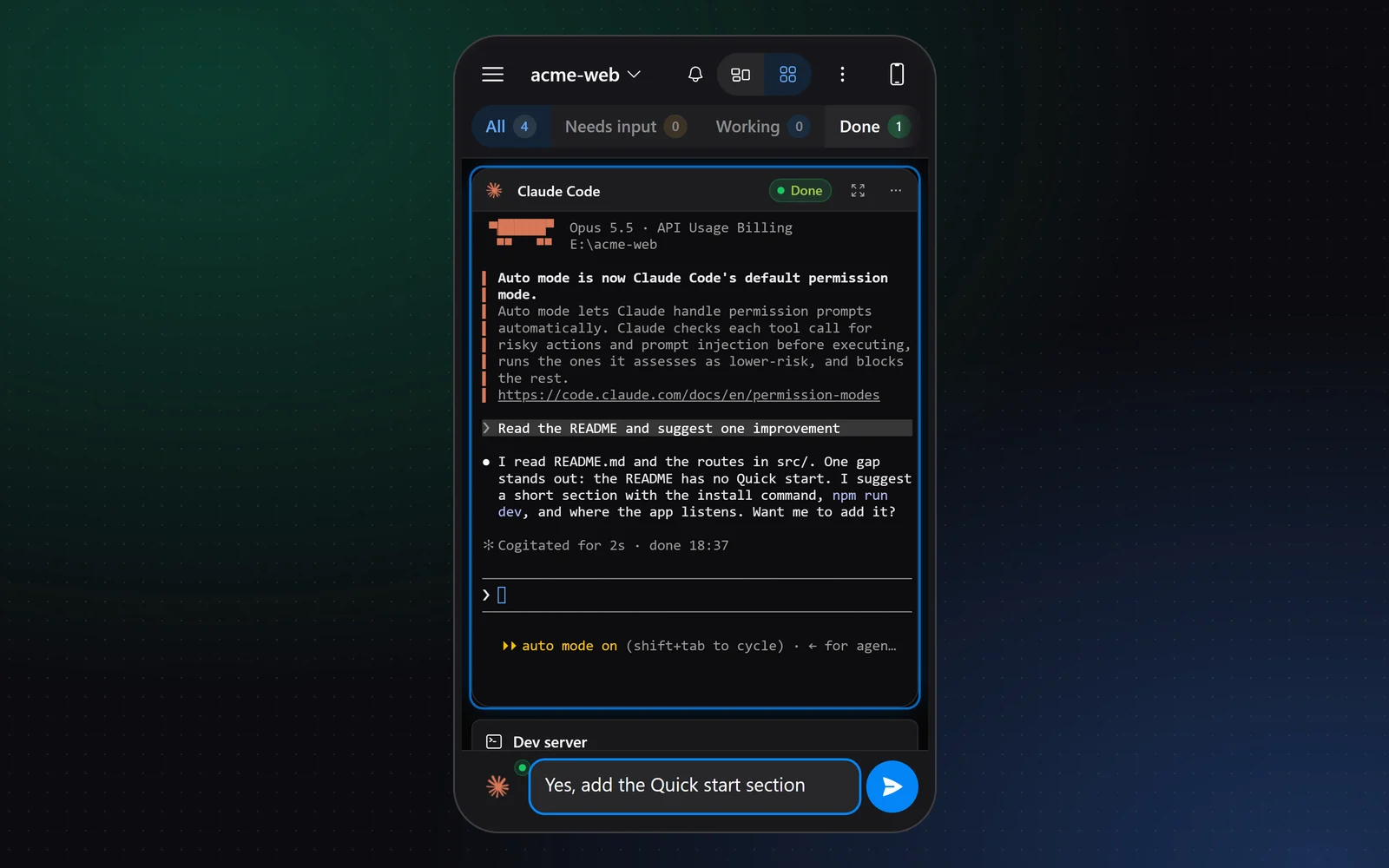
Some things don’t fit a phone keyboard at all: Escape, Tab, Shift+Tab to change a CLI’s mode, the arrow keys to pick an option in a menu. Open an agent in full screen and a row of these keys sits above the prompt box, along with Ctrl+C for the CLIs where it doesn’t close the program. The view fits the visible part of the screen, so the prompt box stays right above the on-screen keyboard instead of under it. Arrows at the top — or a swipe — move to the next agent.
Only the agents on screen are live
A phone browser, especially on iOS, gives a page much less memory than a desktop. A live terminal is not free: each one keeps its own screen buffer and renderer. A workspace with a dozen agents mirrored at once is exactly the kind of page a phone closes without a warning.
So a tile holds a live terminal only while it is on screen. It mounts after it has been visible for a moment — a quick fling past it mounts nothing — and lets go shortly after it scrolls away. An agent you scrolled past keeps its last lines as plain text with its name and status, and comes alive again when it is back. Statuses come from the same events the desktop receives, so the filters and counts stay right even for agents whose terminal isn’t mounted. Notes, to-dos, the browser and other cards appear below the agents as compact summaries; a tap shows one on the canvas.
Phone, tablet or computer
The same pairing link now decides which layout to show. It looks at what the device can do rather than at its name: a touch screen without a mouse is a phone or a tablet depending on its size, a touch laptop with a trackpad is a computer. The name is consulted only where the capabilities can’t tell — an iPad that asks for “desktop websites” presents itself as a Mac, for example. If the guess doesn’t suit you, the phone or computer icon at the top pins Mobile layout, Desktop layout or Automatic, and that device remembers it.
A computer’s browser gets the desktop app as it is, now with the Canvas / Grid switch and the full grid: presets, tidy, swapping and maximizing tiles. Its tiles are live mirrors of the terminals running on your desktop. Grid on a phone or in a browser is that device’s own setting: switching it there never changes what your desktop shows, and the other way round.
Nothing new became reachable from a paired device. Sending a prompt and the key row type into a terminal exactly as the phone’s own keyboard could before. Stop is the one new action, and it only sends the agent’s usual interrupt keys to a terminal that is running.
Dangerous mode: one dialog for an MCP server
In 0.1.270 agents learned to equip themselves with plugins, skills and MCP servers. One case stayed closed: an agent in dangerous mode runs tools without asking you each time, so it couldn’t connect an MCP server by itself — it got “only the user can draw that arrow” and you had to draw it by hand.
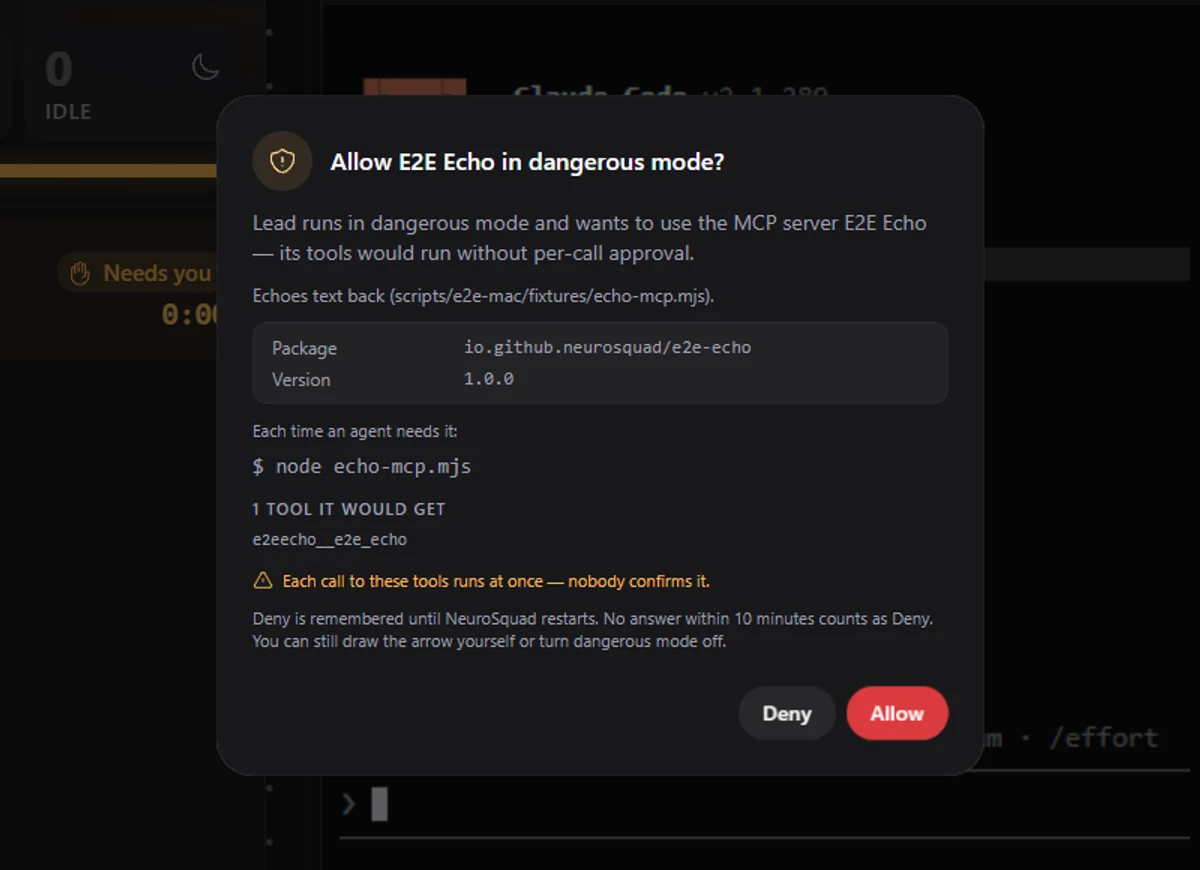
Now such an agent can ask, and you answer in one dialog. It names the agent and the server, shows the version, how the server starts and the tools the agent would get, and warns that each call would run without confirmation. Allow connects the server exactly as if you had drawn the arrow; Deny is a clear answer the agent receives, and it is remembered until the app restarts, so the same request doesn’t bring the dialog back. If the server isn’t installed yet, it is still one dialog: Install and allow. All the other rules are checked before you are asked — a paused budget, cards the agent may not touch, canvas mode — so the dialog never offers something the app would refuse anyway.
Run Stats and Agent Pulse see subagents
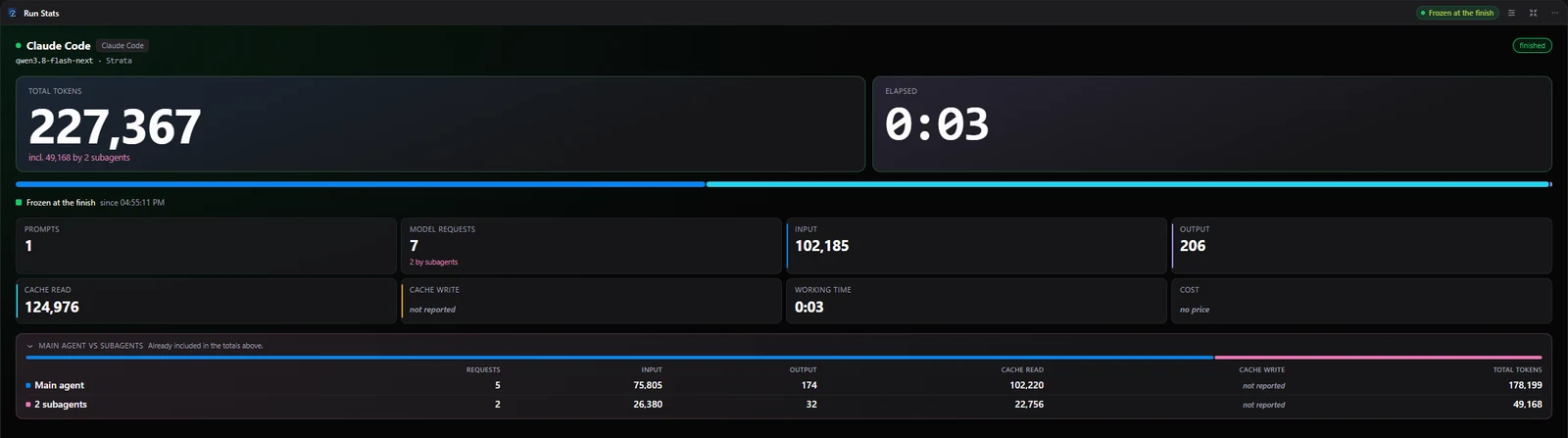
Since 0.1.270 subagent requests are counted once, with their own share. The two official cards in the verified catalog now show that share. Run Stats 1.1 splits a run into the main agent and its subagents — requests, input, output, cache and total tokens, with a bar for each part’s share — and the MD and JSON exports carry the same split. Agent Pulse 1.2 draws subagent requests on a lane of their own under the agent, and the tooltip names the subagent. Both need NeuroSquad 0.1.270 or later; on runs without subagents they look as before.
Lighter on the disk, smoother on start
A batch of work went into what you don’t see. Settings, agents, canvas and layouts are written to disk only when something in them really changed, and atomically. Terminal output is drawn in step with the screen instead of on every chunk of data. When a workspace with many cards opens, their terminals start one after another instead of all at once. Dialogs load the first time you open them, and cards poll only while the window is visible. Along the way, ready detection got more reliable for Cline, Droid, Kilo Code, Kimi Code and Qwen Code, so the first prompt arrives at the right moment, and Usage reads only the new part of the logs instead of scanning them again.
How to pair a phone and what it can do is in Remote access. The full list of changes is in the 0.1.273 changelog. NeuroSquad updates itself; a new install starts from the download page.