Switch an agent’s CLI mid-task, add a template to your workspace, and Graphify
An agent card used to be tied to the CLI it was created with. NeuroSquad 0.1.253 lets you switch it to another one in place, conversation included — plus templates you can drop into an existing workspace, and Graphify, a live map of your code.
When you add an agent to the canvas, you pick its CLI: Claude Code, Codex, OpenCode, Gemini CLI or one of the others. Until now that choice was final for the card. If you wanted another model’s opinion halfway through a task, or one CLI had hit its limit, you started a fresh card and explained everything again.
NeuroSquad 0.1.253 adds Switch harness: the same card, the same terminal, another CLI, and the conversation goes along. This release also lets you insert a template into a workspace you already have, and adds a sixth plugin, Graphify: a map of your code that agents ask instead of grepping, with every question drawn on the card as it happens. It is a Windows release; the Mac app stays on 0.1.230 for now and gets all of this with its next build.
Switch harness: one card, another CLI
Open the card’s menu and choose Switch harness…. The dialog lists the AI harnesses installed on this computer. Pick one, and below it the provider and model for it — the same controls the card’s provider menu has. Two switches decide what happens to the conversation: Carry the conversation over and Send it automatically.
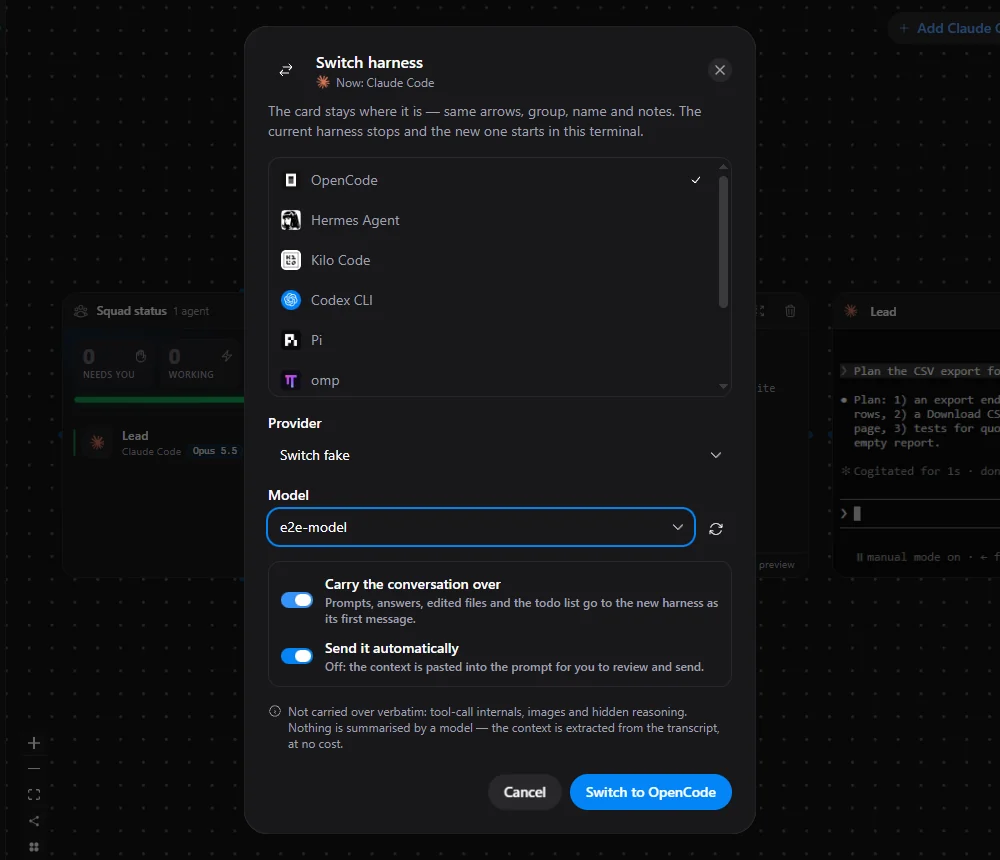
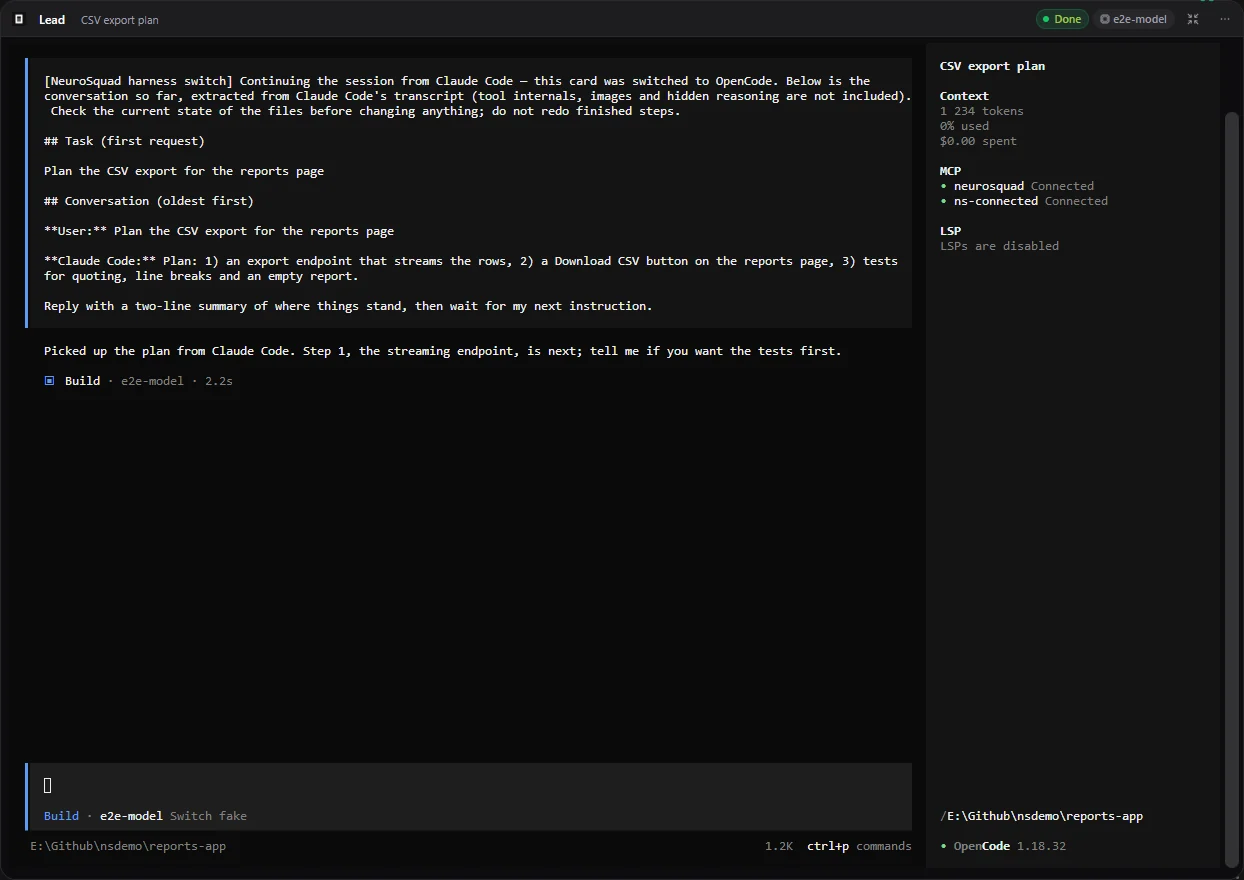
The card does not move. Its place on the canvas, its arrows, frame, name and notes stay, and so does the terminal itself: the old CLI stops, the new one starts in the same xterm, below a dim line that says which harness took over.
The conversation is not summarised by a model. NeuroSquad reads the current session’s transcript — the file the CLI itself writes — and turns it into the new harness’s first message: your prompts, the answers, the files that were edited and the to-do list, up to about 14,000 characters, with the full copy saved in the app’s folder. It costs nothing. Tool-call internals, images and hidden reasoning stay behind, and the dialog says so. With Send it automatically off, the message is only pasted into the prompt, so you can read and edit it first.
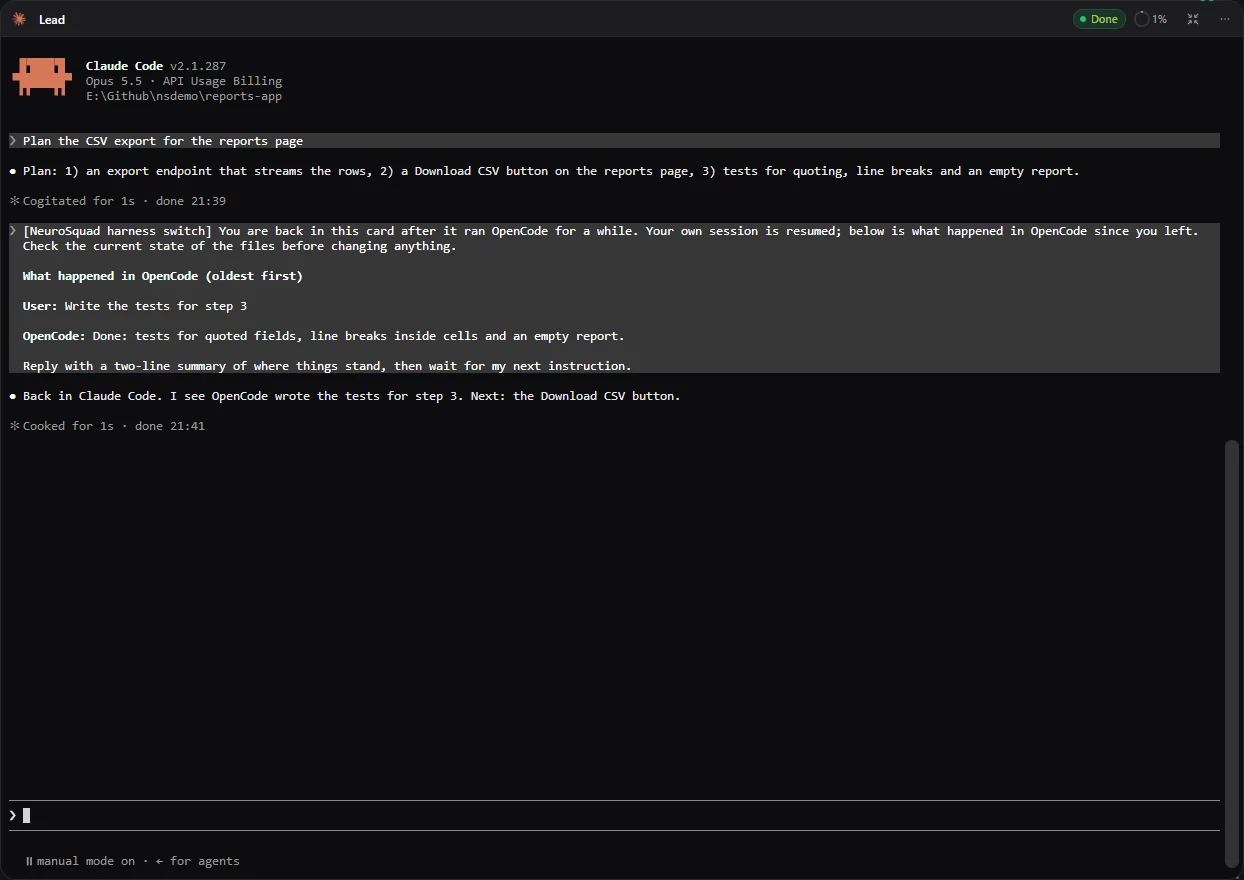
Switching back is not a second hand-over. The card remembers the sessions it has had, so a harness it already ran is marked Resumes its session in the dialog. Choose it, and the CLI picks up its own original session and is sent only what happened while it was away — here, the turn in OpenCode.
- In the middle of a turn, the dialog offers Interrupt and switch — interrupted the way that CLI expects, not with a blind Ctrl+C — or Switch when it finishes.
- Modes that the target can’t take are put aside and come back: a CLI without dangerous mode runs with normal approvals, one without canvas mode uses its own tools, one that can’t use the card’s provider runs on its own login unless you pick another. Switch back and they return.
- In WSL and SSH workspaces only Claude Code runs for now, so there is nothing to switch to there yet — the dialog says so.
Making this work in place meant one change deep in the card. The terminal component was keyed by the harness, so a different harness meant a new component — and in NeuroSquad, unmounting a terminal ends its process. Now the terminal reads the harness live and starts the new CLI itself, after the old one has really exited. Before the new one draws, the terminal also undoes what a full-screen CLI leaves behind — the alternate screen, mouse tracking, a hidden cursor — so the next CLI starts on a clean screen and the earlier output stays in the scrollback.
Templates into a workspace you already have
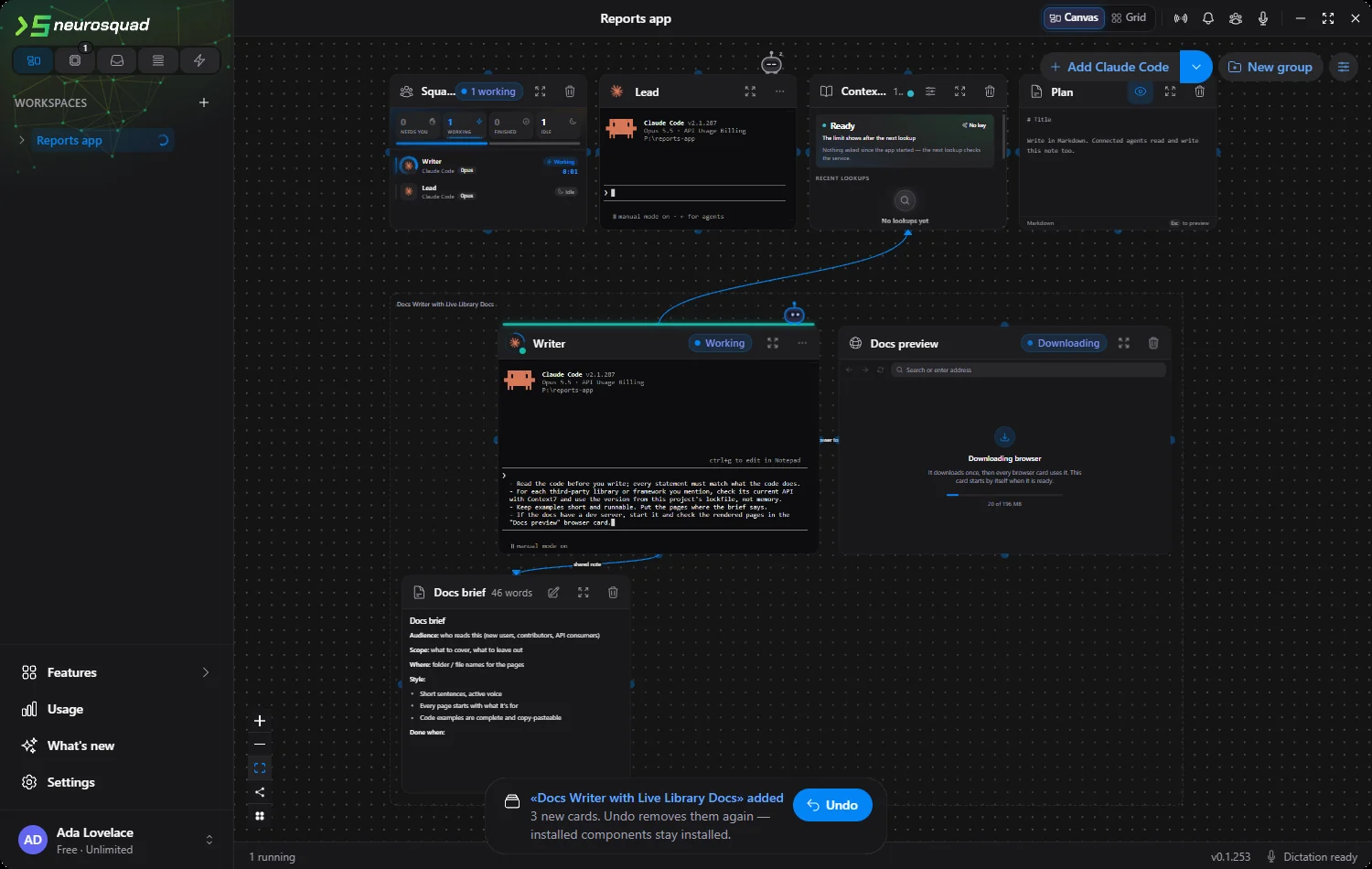
Templates arrived in the previous release, and each import created a new workspace. Often you want the opposite: the agents are already set up, and you need one more piece, like a docs writer next to them. Now the import dialog has New workspace / Add to existing, and Canvas tools → Insert template… — or Template… in the add-card menu — opens it for the workspace you are in.
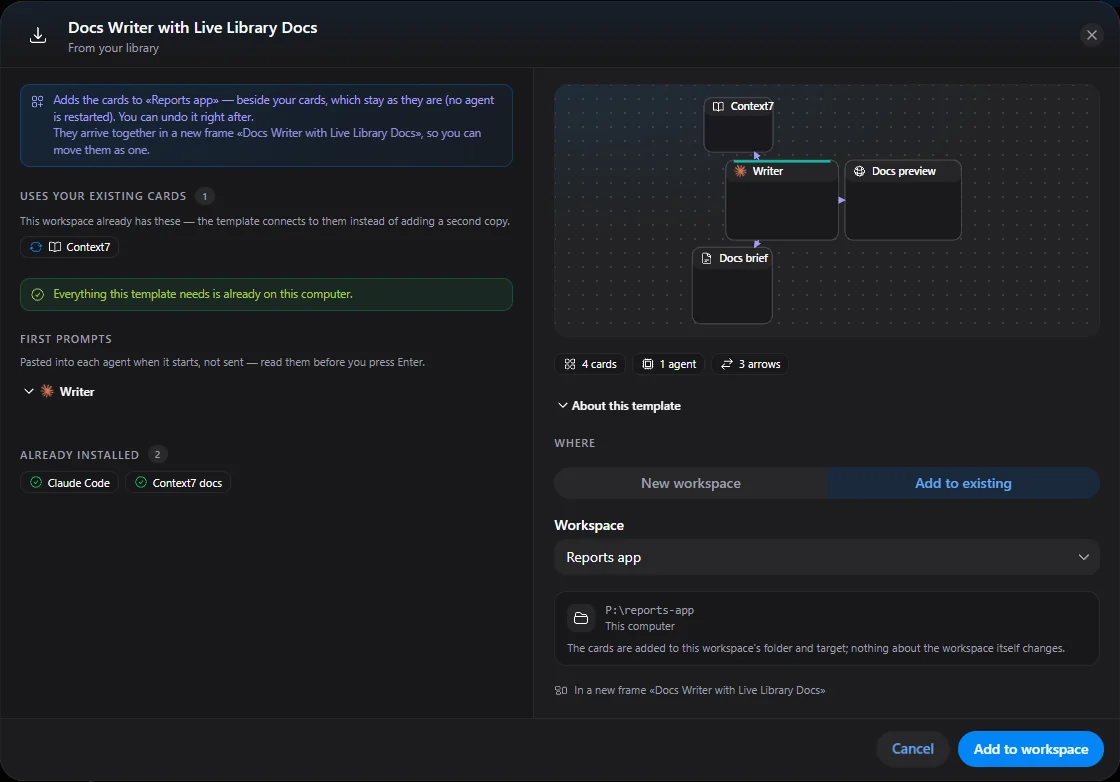
The new part is reuse. Some cards make sense once per workspace — Squad status, Budget, Code Graph, RTK — and if the workspace already has one, the template uses it. Memory, Caveman and Context7 are reused when their settings match the template’s; an MCP or skill card when it points at the same server or skill. Otherwise the template brings its own copy, because quietly changing how your card behaves would be worse than a second card. The template’s arrows connect only the cards it adds and the ones it reuses; the arrows you already had stay as they are.
The new cards arrive together, to the right of or below what is on the canvas, in the template’s own layout and in a frame named after it. The camera flies to them. First prompts are pasted only into the new agents, and nothing that was already running is restarted. If it isn’t what you wanted, the toast has Undo: it removes exactly the cards this insertion added and leaves anything it installed in place.
Graphify: a live map of your code
The sixth plugin builds on graphify, an open-source project (Apache-2.0) that turns a codebase into a knowledge graph: files, functions, classes, calls and imports, grouped into subsystems. Draw an arrow from an agent to a Graphify card and the agent gets graphify_* tools for structural questions — what calls this function, what would a change here affect, how do these two parts connect, what is this subsystem made of. The answer comes from the graph in one call, instead of a loop of searches and file reads.
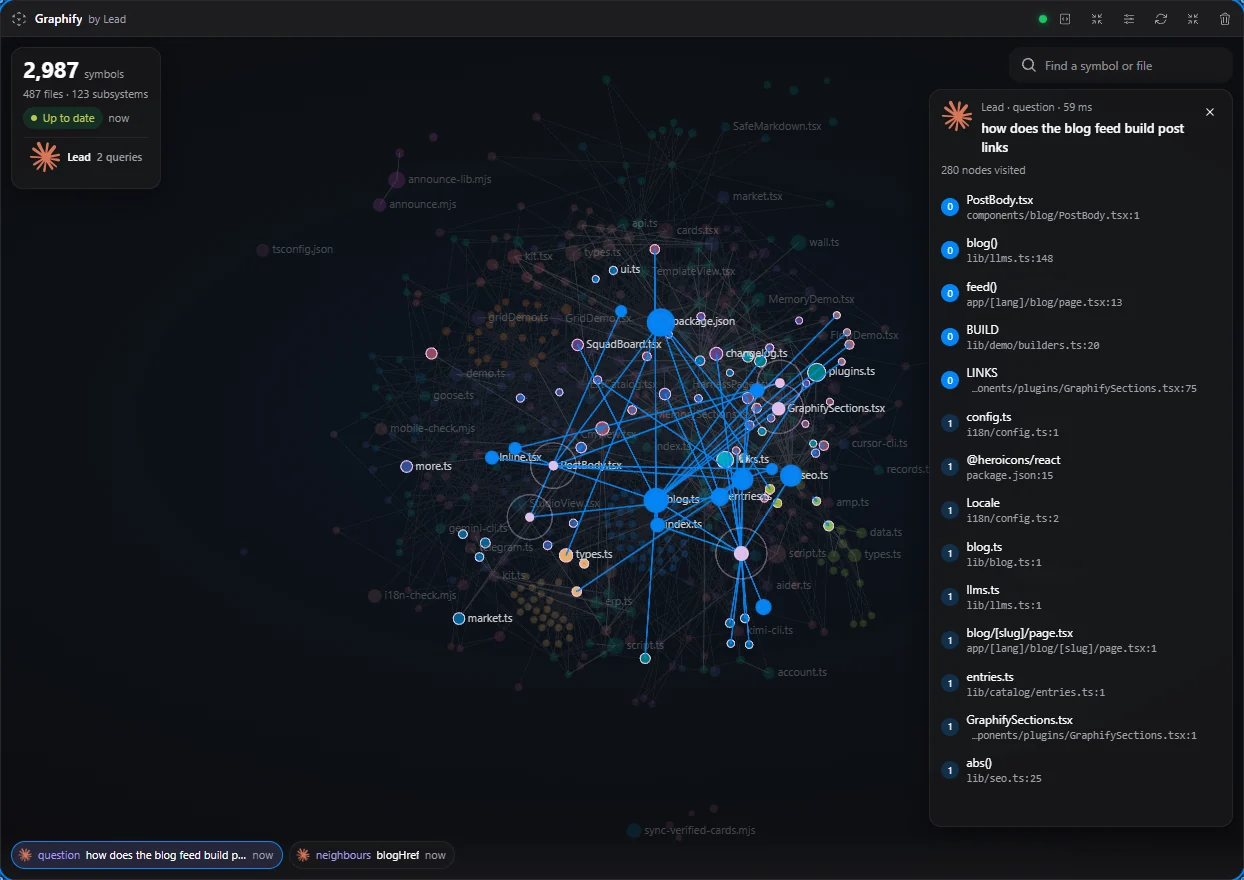
What makes the card different is that you can watch it work. It draws the graph — files sized by how much they contain and coloured by subsystem — and every query an agent makes plays on it: the starting points ripple, the search spreads hop by hop, and the result stays lit with file:line links that open in your editor. A timeline keeps recent queries; click one to replay it.
graphify is a Python program, so the card installs it on request, into the app’s own folder: a private Python, about 250 MB, with every download checked against a pinned checksum and every package against a hash. Your own Python is never used. The first time you look at the card, it maps the whole project with progress and an estimate of the time left; after that it updates a few seconds after files change. Nothing is written into the project or your home folder, no language model is involved and no API key is passed to it. It works in local workspaces and in WSL; over SSH the card says it isn’t available.
Agents tend to fall back to grep even when a better tool is right there, so the card helps them remember. The tool descriptions start with when to use them instead of a text search. On the first turn with the arrow, the agent gets a short note that the graph exists and what it answers, and later a one-line reminder when a prompt looks structural. Claude Code also gets a one-line hint when it greps for something that looks like a function or class name — written as a fact, never as a block: the search still runs.
Fitting graphify into an app took a few changes on our side, all outside its code. Its command-line entry point updates assistant skills in your home folder, so the card calls the build step directly, and our tests check that the home folder is left untouched. It prints progress only every hundred files, so the card counts finished files itself to show a real progress bar. And it refuses to save a graph smaller than the previous one — a guard for its own multi-session builds — which would have kept deleted files in the map, so that check is off in the card’s process.
Smaller changes
- Templates made by the NeuroSquad team carry an Official badge in the marketplace, and like and download counters stay hidden while they are zero.
- The canvas mode tooltip on a card now says what happens for that CLI: its own shell and web tools are switched off from the next launch, and for Cursor CLI they are blocked at once.
Also on the website
- A new Canvas mode page: an interactive story in the app’s own interface, from turning canvas mode on to an agent working through cards. The home page now has a short Canvas mode section that links to it.
- Ten official templates in the templates marketplace, made by the NeuroSquad team.
- A Graphify plugin page with an interactive demo of a live query on a code map, and how it compares with Code Graph.
- For AI assistants: the site publishes llms.txt files and its blog posts as Markdown, and every page of the docs is available as plain Markdown too.
The docs have guides for Graphify and for inserting a template. The full list of changes is in the 0.1.253 changelog. NeuroSquad updates itself; a new install starts from the download page.