Templates: share a whole agent setup, install it with one consent
A good agent setup takes an afternoon to get right: which agents, which cards, which arrows, which plugins and servers. NeuroSquad 0.1.247 lets you save it as a template, publish it, and lets anyone else rebuild it on their machine after one confirmation.
Getting a squad of agents to work well together is mostly setup. A lead agent and two helpers, a checklist they all read, a terminal one of them runs tests in, Memory for what they learn, an arrow to Context7 so nobody guesses an API. Once it works, you want it again in the next project — and a colleague asks how you set it up. Until now the answer was a screenshot and a list of steps.
NeuroSquad 0.1.247 adds templates: a workspace’s shape and settings in one file, a library to keep them in, a marketplace to share them through, and an import that rebuilds the whole thing on another machine after a single confirmation. This release also adds Arrange by connections for the canvas and installs Node.js for you when a computer has none. It is a Windows release; the Mac app stays on 0.1.230 for now and gets all of this with its next build.
What a template keeps — and what it never does
Canvas tools → Save as template… takes the whole workspace; selected cards have their own entry in the canvas menu. A template holds the cards, frames and arrows with their layout, the agents with their models and modes, each card’s built-in settings, and the plugins, skills and MCP servers they rely on. You give it a title, a Markdown description, a category and tags, and can add a first prompt to any agent — it is pasted into the agent when the workspace starts, never sent on its own.
A template is the setup, not the work. API keys and tokens, folder paths, chats and transcripts, memories, browser data and Telegram chats are never included. The text inside notes, to-do lists and boards stays out too, unless you tick Include content on that card. Keys the setup needs — an MCP server’s token, say — become values the importer is asked for.
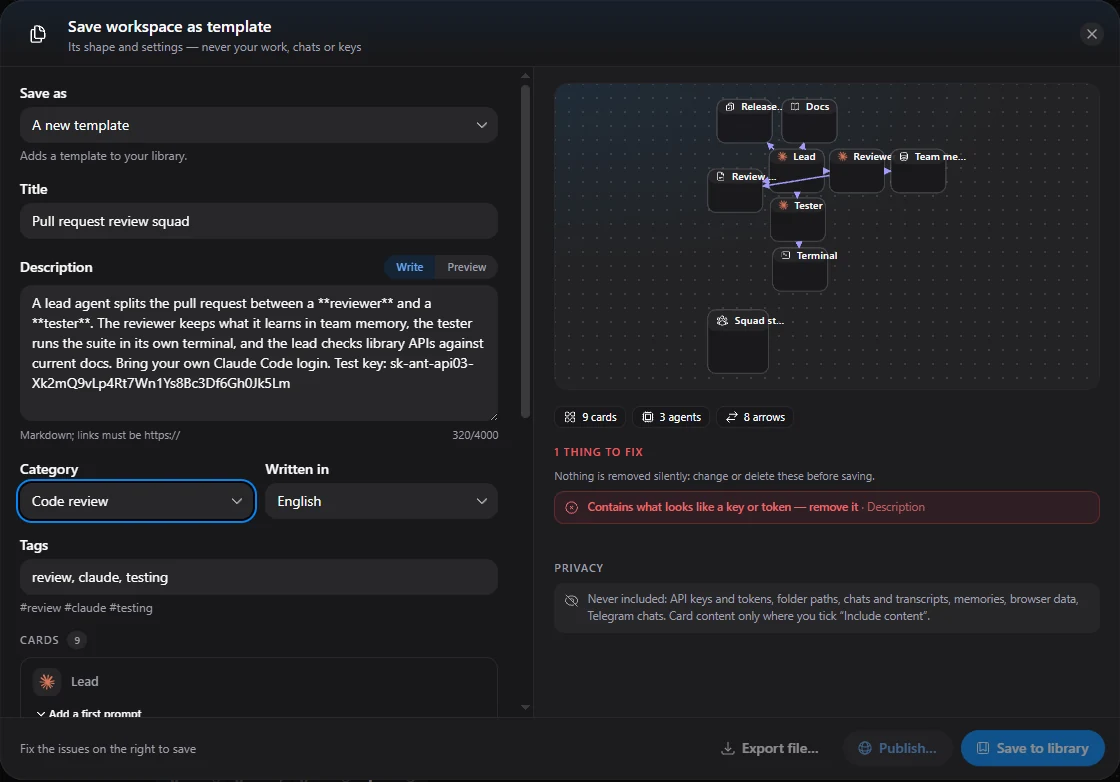
People paste keys into the wrong field, so the checks don’t rely on field names alone. While you edit, the dialog looks for fields named like secrets that hold a value, for the formats of common credentials anywhere in the text — prompts and descriptions included — and for paths on your computer, from your home folder to the workspace’s own folder. Anything it finds is listed with where it is. Nothing is removed silently: a template that quietly lost a field would just break on the other side.
From the dialog a template goes to your library, to a JSON file, or to the marketplace. Workspace templates saved with earlier versions are in the same library, marked Legacy.
One dialog, one confirmation
The other side matters more. A template can ask for agent CLIs you don’t have, MCP servers, skills and custom cards. Installing them one by one is the chore templates are meant to remove; installing them silently is not an option either. So the import shows everything in one place and asks once.
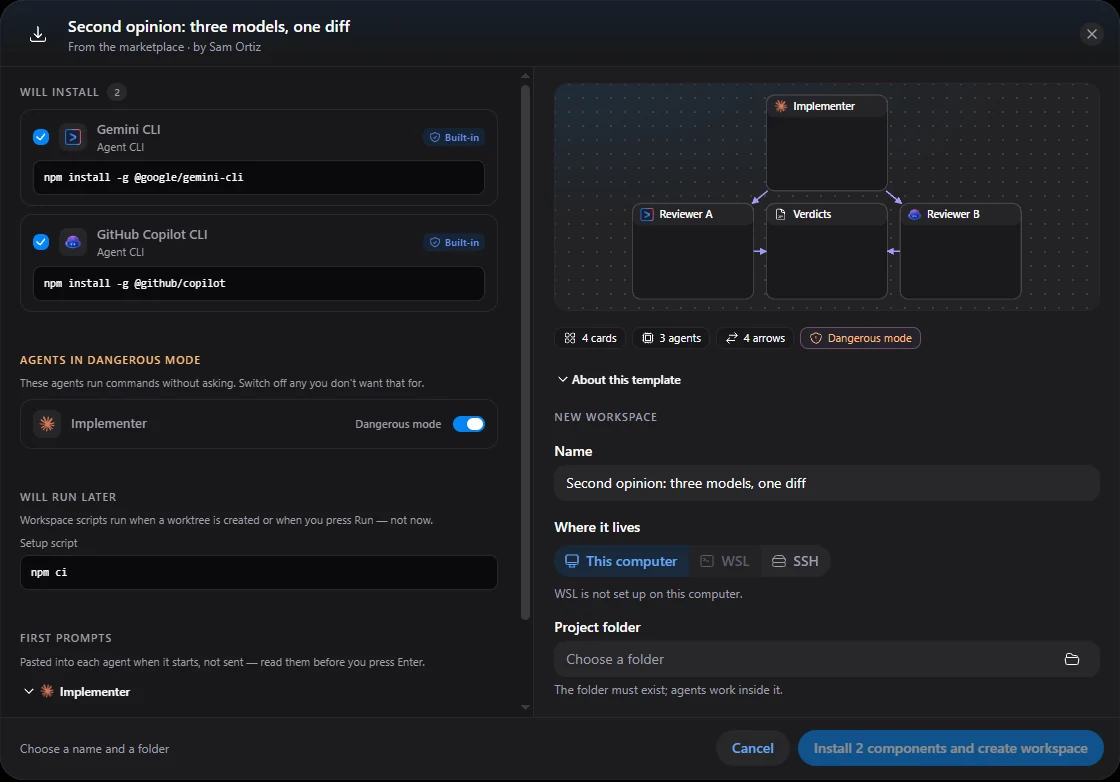
- Agent CLIs are installed by the app’s own installer, and the dialog shows the command.
- MCP servers come from the official MCP registry. The template names the server and version, never a command line; the app builds the install steps from the registry entry and shows them with the launch line.
- Skills come from skills.sh and are pinned to the version the author used. Skills that carry scripts are flagged.
- Custom cards from our verified catalog install like the rest. A card from outside it is never ticked for you, is shown in red — one that asks for permissions is installed from Custom cards, where they are shown first — and the marketplace does not accept templates that use one.
- Dangerous mode, the workspace’s scripts and every first prompt are shown before you confirm. Dangerous mode can be switched off per agent right there.
Then you name the workspace, pick where it lives — this computer, a WSL distro or an SSH host — and the folder. Progress is shown per component; if one fails, you can retry it or create the workspace without it. The new workspace gets fresh agent sessions, under your own logins and keys.
The marketplace
Any template in your library can be published. A moderator checks every version — the prompts, the scripts, dangerous mode, the servers it installs — before it appears on neurosquad.ai/templates and in the app’s Templates → Marketplace tab. There you can search, sort by popular, new or trending, filter by category, and like a template with your NeuroSquad account. Open in NeuroSquad on the website opens the import dialog in the app through a neurosquad://template/… link, even when the app wasn’t running.
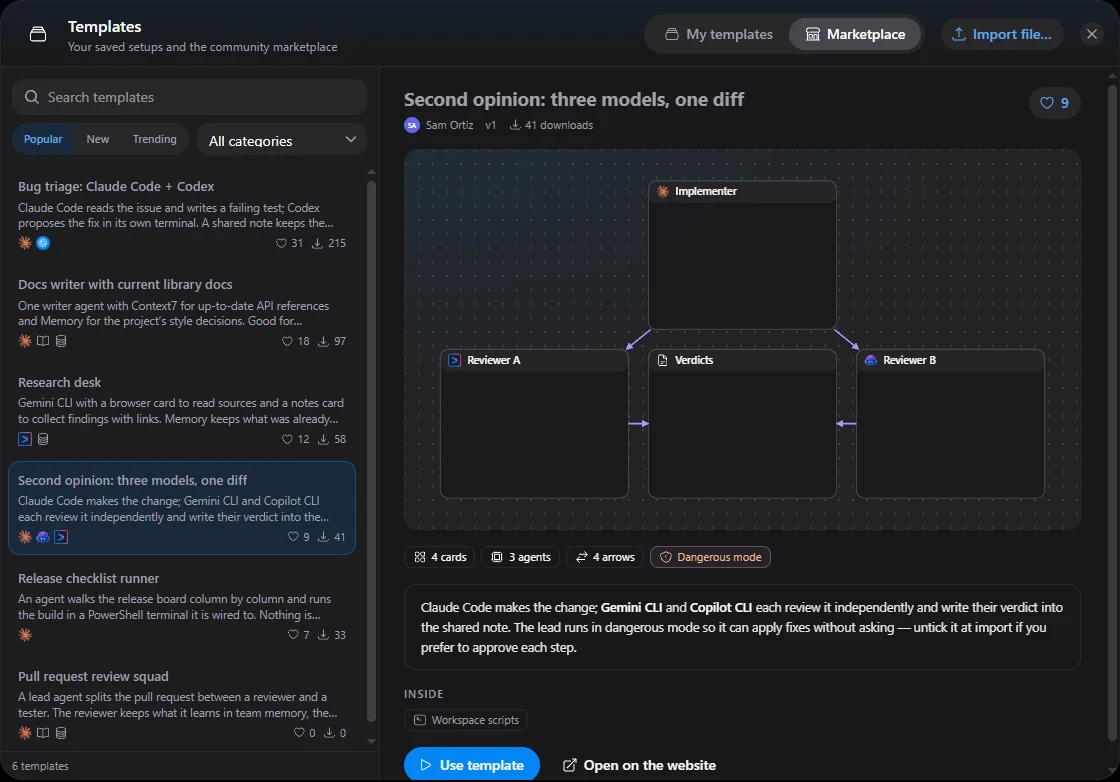
Only the author can change a template. To update one, save the changed workspace over it — Save as → New version of “…” (published) — and publish the update. The public version stays up while the update is reviewed, so a template never disappears from the marketplace because its author improved it; if an update is rejected, the author sees the reviewer’s note and the live version is untouched. The app’s usage statistics record only that a template was published or imported — never its id, title or contents.
Arrange by connections
An imported template, or a workspace that grew card by card, often ends up as a tangle of arrows. The canvas’s Arrange button used to put cards in a grid, which ignored the arrows entirely. Now Arrange by connections lays the canvas out by them: each group of connected cards becomes a cluster around its lead agent — the one no other agent points at — with every sub-agent’s cards fanned out behind it. Cards without arrows go in a grid below, frames move as units, and nothing overlaps.
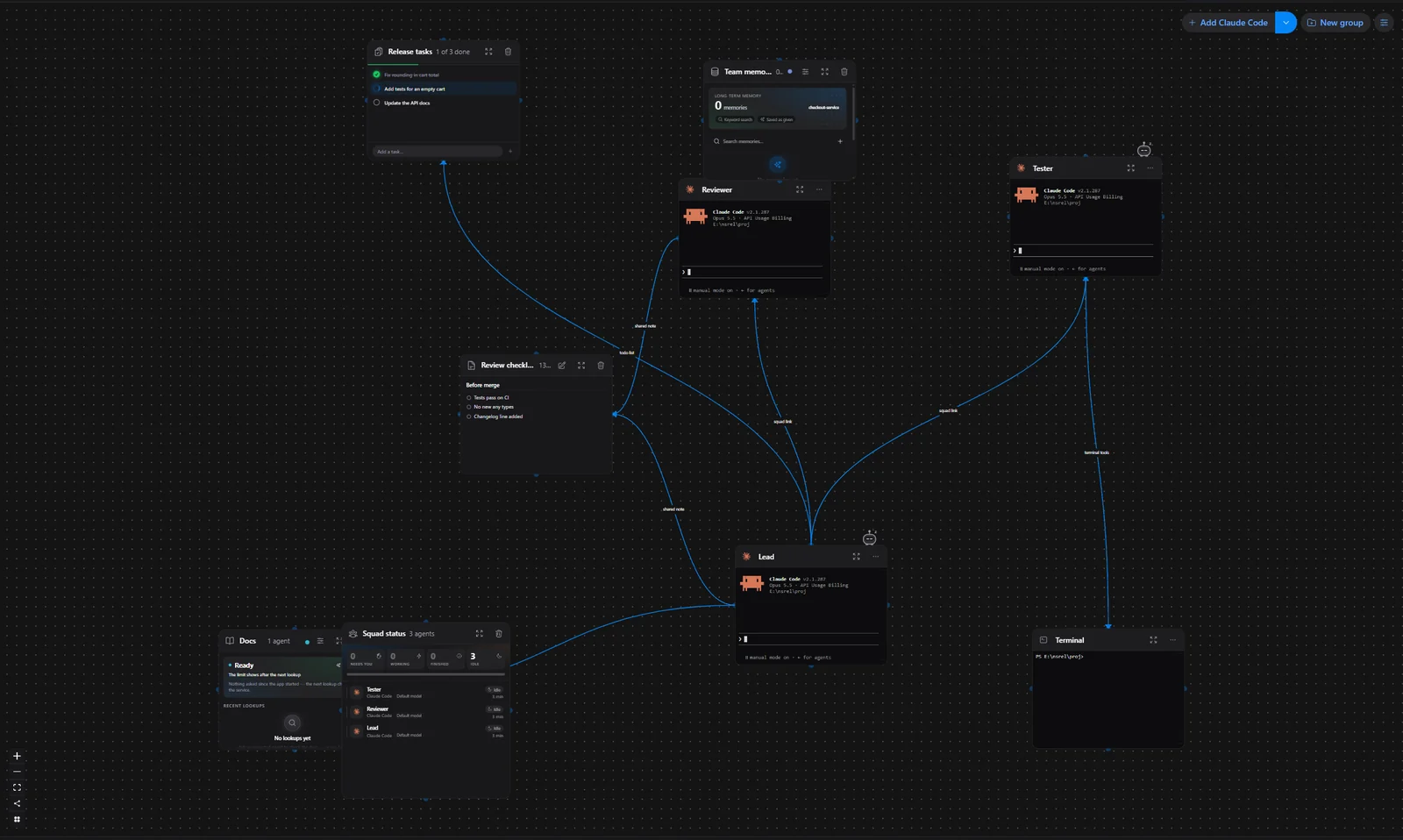
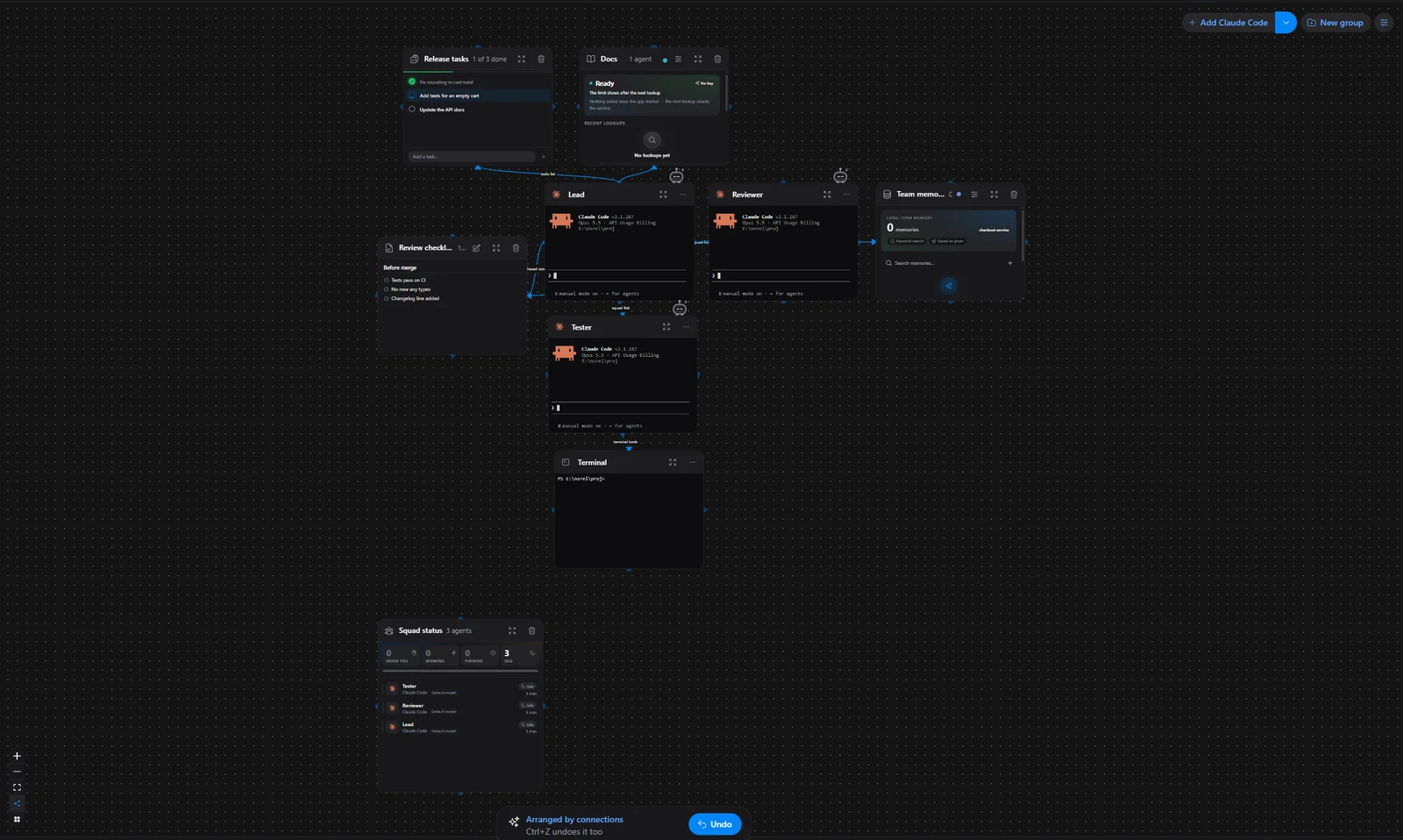
The result is the same every time for the same canvas, cards keep their size, and the camera never zooms in on you. Each arrange is one undo step, with an Undo button in the toast as well as Ctrl+Z. The old grid is still there as Tidy grid.
Node.js, when a computer has none
Most agent CLIs install as npm packages, so on a fresh Windows machine without Node.js the first step of setup used to be “go and install Node.js”. Now the setup wizard does it: when npm is missing, it downloads the current Node.js LTS from nodejs.org, checks the archive against the SHA-256 that nodejs.org publishes — no checksum, no install — and unpacks it for your account only, without administrator rights, adding it to your user PATH the way the official installer does. A Node.js you already have is never touched, and the wizard shows how to undo it. The Windows installer does the same on a fresh install; Skip Node.js skips just that step, and --no-node turns it off. Here is that step from our test install of this release:
node.js: none found; installing v24.21.0 (node-v24.21.0-win-x64.zip)
node.js: downloading https://nodejs.org/dist/v24.21.0/node-v24.21.0-win-x64.zip
node.js: downloaded 37618919 bytes
node.js: sha256 expected 158f7685b44de51f6c0df1d153526cbcd3e1bc739a8dfc607721cef75de9e541
node.js: sha256 got      158f7685b44de51f6c0df1d153526cbcd3e1bc739a8dfc607721cef75de9e541
node.js v24.21.0 installed
Also on the website
- The templates marketplace: every approved template with a preview of its canvas, what it installs, likes and downloads, Open in NeuroSquad and Download JSON.
- A new interactive demo at the top of the home page: four workspaces running at once.
- Signed in to your NeuroSquad account, the site shows your name and avatar instead of “Sign in”.
The full list of changes is in the 0.1.247 changelog. NeuroSquad updates itself; a new install starts from the download page.